
9 Steps to Secure Microsoft 365 for Law Firms: MFA, Purview, Backups

For most small firms, Microsoft 365 Business Premium is the right starting point, and Microsoft 365 E3 or E5 makes sense once compliance demands grow. Either plan only earns that recommendation when it's configured correctly: multi-factor authentication enforced, Purview governance turned on, and third-party backups in place. Without that configuration, Microsoft 365 alone won't cover conflicts checks, trust accounting, or court-rules calendaring, and it won't satisfy your ethical duty to protect client data.
TL;DR:
- Small firms should prioritize configurations like multi-factor authentication, Purview labels, and third-party backups over relying solely on licensing tiers for security.
- Microsoft 365 Business Premium suits most law firms with 5 to 30 users handling general matters, but larger or high-risk firms need E3 or E5 paid plans for advanced compliance tools.
- Proper Teams governance involves structuring teams by matter, restricting guest access, and standardizing compliance policies to prevent untracked files and data leaks.
- SharePoint should use metadata tagging for documents instead of deep folder hierarchies, ensuring better searchability and consistent permissions.
- Ongoing security and governance require continuous monitoring, access reviews, and testing backups, making proper setup more critical than the chosen license plan.
Table of Contents
- Which Microsoft 365 Plan Fits Your Law Firm
- How Should Law Firms Use Microsoft Teams for Client Work?
- OneDrive vs SharePoint: Building a Matter-Centric Document Structure
- What Security Controls Does a Law Firm Actually Need to Turn On?
- Can Microsoft 365 Replace Your Law Practice Management Software?
- Migration Checklist: Setting Up Microsoft 365 Safely for Legal Work
- What Should Law Firms Budget for Microsoft 365?
- How Greatplainsnetworking Supports Law Firms on Microsoft 365
- The Real Lesson Here: Compliance Is a Configuration Problem, Not a Licensing Problem
- Get Microsoft 365 Configured Right the First Time
- Sources
Which Microsoft 365 Plan Fits Your Law Firm
Picking a plan is really a compliance decision disguised as a shopping decision. Each tier changes what you can prove about how client data is protected, not just which apps your staff can open.
Microsoft 365 Business Standard gives you the desktop and web versions of Word, Excel, Outlook, and Teams, plus 1TB of OneDrive storage per user and standard SharePoint sites. It's productivity software with no meaningful security layer beyond basic email filtering. A two-attorney firm handling low-risk matters could survive on it, but most firms outgrow it fast.
Microsoft 365 Business Premium adds the pieces that actually matter for legal work: Microsoft Defender for Office 365, Intune device management, conditional access policies, and basic Microsoft Purview capabilities like retention labels. For a modest jump in per-user cost over Business Standard, you get device compliance enforcement and phishing protection that Standard lacks entirely. This is the tier the Oklahoma Bar Association's guidance on subscription plans points to as the practical balance for firms in the 5 to 30 user range, and it's where Greatplainsnetworking starts most law-firm clients unless there's a specific reason to go higher.
Microsoft 365 E3 builds on that with advanced eDiscovery, more granular data loss prevention, and Azure Information Protection at a level Business Premium doesn't reach. E5 adds insider risk management, advanced audit, and premium Purview compliance tools. Firms handling regulated data, large discovery volumes, or multi-jurisdiction litigation tend to need E3 or E5 because some Purview capabilities carry E3/E5 prerequisites that Business Premium simply doesn't unlock.
A rough sizing guide:
- Solo practitioner or two-person firm with low-sensitivity matters: Business Standard, upgraded to Premium once client files include anything regulated.
- Firms of 5 to 30 users doing general practice, family law, real estate, or estate planning: Business Premium.
- Firms of 30+ users, or any firm handling high-stakes litigation, healthcare, or financial matters: E3 as the floor, E5 if eDiscovery volume or insider risk is a real concern.
Add-ons like Microsoft 365 Copilot and E5 Compliance packages sit on top of whichever base plan you choose, and they come with their own governance questions worth working through before you buy.
How Should Law Firms Use Microsoft Teams for Client Work?
Teams is where most day-to-day matter collaboration should live, but the way you structure it determines whether it helps or creates a mess of untracked chats and orphaned files. Microsoft positions Teams as a centralized hub for chat, meetings, and file access, and that's accurate as long as you build the structure deliberately rather than letting it grow organically.
The core decision is Team-per-matter versus channel-per-matter. For firms with dozens of active files, one Team per practice group with a channel per matter tends to scale better than spinning up a new Team for every case, which quickly becomes unmanageable. High-value or highly sensitive matters (a major litigation, a sensitive M&A deal) often justify their own dedicated Team with tighter membership controls.
A few practical steps make Teams safer for client-facing work:
- Turn off "Anyone" meeting links firm-wide and require authentication for anyone joining a client call.
- Restrict guest access so external parties (co-counsel, experts, opposing counsel on a joint matter) get scoped access to one channel, not the whole Team.
- Set a retention policy on Teams chat and meeting recordings so client communications and recorded depositions or hearings are preserved and discoverable, not lost to chat history limits.
- Standardize which apps live inside Teams. Planner or Tasks for matter deadlines, OneNote for shared case notes, and a document library tab pointing to the matter's SharePoint site, rather than letting attorneys default to emailing files back and forth.
Pro Tip: Assign one partner or practice manager to own your Teams governance settings quarterly. Guest access and sharing links drift open over time as staff turn over, and nobody notices until a former paralegal's account still has access to an active matter.
OneDrive vs SharePoint: Building a Matter-Centric Document Structure
OneDrive and SharePoint solve different problems, and confusing them is one of the most common Microsoft 365 mistakes law firms make. OneDrive is personal storage: drafts in progress, a memo you're not ready to share, working notes. SharePoint is where matter files belong, because it's built for shared permissions, version history, and structured metadata that a personal drive can't offer.
The temptation is to build deep folder trees mirroring your old file server, client folder, then matter folder, then sub-folders for pleadings, correspondence, and discovery. That approach works until search stops being useful and permissions get inconsistent across dozens of sub-folders. A better approach uses metadata columns on a flatter structure: tag each document with a Matter ID, client name, practice area, and jurisdiction, and let SharePoint's search and filtered views do the organizing instead of nested folders.
Recommended metadata fields for a matter library:
- Matter ID (tied to your billing or practice management system if you use one)
- Client name
- Practice area (litigation, real estate, family, corporate)
- Jurisdiction or court
- Document status (draft, filed, executed)
- Sensitivity level
Co-authoring in SharePoint handles version history automatically, which matters for pleadings and briefs that go through a dozen redlines before filing. You don't need manual check-in/check-out for most documents, but turning it on for final, filed versions prevents accidental edits after a document is locked.
Sensitivity labels from Microsoft Purview should sit on matter folders, not just individual files, so anything created inside that folder inherits the same protection automatically.
Pro Tip: Apply a "Confidential, Client Data" sensitivity label at the library level for every active matter site. It's far easier to loosen a label later than to discover six months in that a discovery production folder had no protection at all.
What Security Controls Does a Law Firm Actually Need to Turn On?
Microsoft 365's default configuration was not built with privileged client communications in mind, and treating tenant setup as a security project rather than an IT checkbox is the mindset shift that separates firms that get breached from firms that don't.
Multi-factor authentication comes first, with no exceptions. Enforce MFA for every user and block legacy authentication protocols outright, since legacy auth is the most common bypass attackers use against Microsoft 365 tenants. Pair this with conditional access policies covering legal offices that block sign-ins from unexpected countries or unmanaged devices.
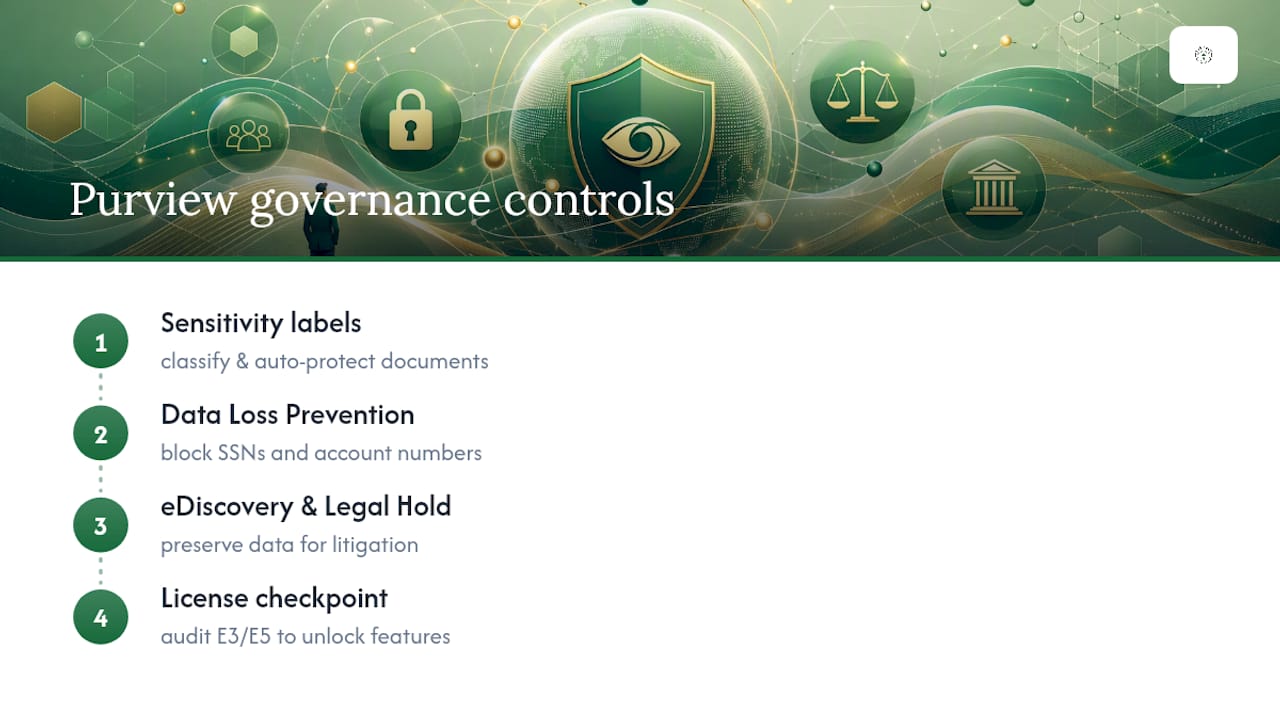
Microsoft Purview is your governance backbone. Sensitivity labels classify and protect documents automatically. Data Loss Prevention policies stop client Social Security numbers or account numbers from leaving the tenant by accident. eDiscovery and legal hold tools let you preserve data for litigation without scrambling. Keep in mind that some of Purview's more advanced capabilities require E3 or E5 licensing, so audit what your current plan actually unlocks before you assume a policy is active.
Defender for Office 365 handles the email layer, catching phishing attempts and malicious attachments before they reach an attorney's inbox. Given that email remains the primary way opposing parties and scammers attempt business email compromise against law firms, this isn't optional hardening. It's baseline.
Backups are separate from retention, and this distinction trips up a lot of firms. Native Microsoft 365 retention policies preserve data for compliance, but they're not a substitute for a real third-party backup solution that supports point-in-time restores of Exchange Online, SharePoint, and OneDrive. If ransomware encrypts a shared drive or a disgruntled employee deletes a matter folder, retention policies may not get you back to a clean state the way a proper backup will.
Attorney ethical rules already require reasonable cybersecurity as part of the duty of competence, and firms remain responsible for vetting whether a vendor like Microsoft meets that bar, a responsibility outlined clearly in bar association guidance on subscription plans and document management.
Finally, none of this works as a one-time setup. Monitoring, alert review, and periodic access audits are governance tasks, not IT chores you finish once. Understanding why client data needs special handling makes clear why this ongoing review matters more for legal files than for a typical small business's data.
Can Microsoft 365 Replace Your Law Practice Management Software?
No, and firms that try usually find out the hard way during a conflicts check or an audit. Microsoft 365 is productivity and collaboration infrastructure. It was never built to run the legal-specific workflows that malpractice insurers and bar associations expect a firm to have in place.
Out of the box, Microsoft 365 does not include:
- Automated conflicts-of-interest checking across your entire client history
- Trust accounting that separates client funds and tracks IOLTA compliance
- Court-rules calendaring that automatically calculates filing deadlines by jurisdiction
- Integrated time entry and billing tied to specific matters
- A client portal built for secure, permission-scoped document sharing with non-technical clients
The North Carolina Bar Association's direct comparison confirms this gap explicitly: Microsoft 365 lacks the legal-specific features a dedicated law practice management system provides, and no amount of SharePoint customization fully closes it.
That doesn't mean every firm needs a full LPMS on day one. A two-person estate planning practice with simple billing might get by on Microsoft 365 plus a lightweight conflicts spreadsheet and a calendar add-on. A litigation firm juggling multiple courts, trust accounts, and dozens of active matters almost certainly needs a dedicated LPMS integrated with Microsoft 365 for email and document collaboration, rather than trying to force Microsoft 365 to do a job it wasn't designed for.
The decision comes down to three factors: how complex your billing and trust accounting are, how many jurisdictions you practice in, and how much risk a missed conflicts check or calendaring error would create for your malpractice exposure.
Migration Checklist: Setting Up Microsoft 365 Safely for Legal Work
A law firm migration to Microsoft 365 is a security project wearing an IT project's clothes. Skipping steps here is how firms end up with an unsecured tenant that happens to run Outlook.
- Audit before you migrate. Inventory every mailbox, shared drive, legacy application, and existing authentication method. You can't secure what you haven't counted.
- Enforce MFA and block legacy authentication as the very first configuration change, before a single mailbox moves over.
- Set conditional access policies restricting sign-ins by location, device compliance, and risk level.
- Apply sensitivity labels and configure DLP policies for client data, financial account numbers, and any regulated information categories relevant to your practice.
- Lock down external sharing defaults in SharePoint and OneDrive so "anyone with the link" is never the default option.
- Configure Defender for Office 365 anti-phishing and safe-attachment policies before staff start receiving mail on the new tenant.
- Implement a third-party backup solution covering Exchange, SharePoint, and OneDrive, then actually test a restore before you trust it.
- Train staff on the new environment and document role-based permissions so paralegals, associates, and partners have access matched to their actual role.
- Schedule periodic access reviews and build a basic incident response plan before you need one.
Pro Tip: If your firm's tenant is currently managed through a reseller like GoDaddy, budget extra time for the migration. Reseller-managed tenants often have delegated admin roles and locked settings that a firm's own IT team can't touch directly, and firms frequently outgrow that setup right around the point they need granular security controls.
Firms exploring managed Microsoft 365 support and migration services should expect this checklist, in some form, to be the actual scope of work, not just a mailbox move.
What Should Law Firms Budget for Microsoft 365?
Per-user licensing is the visible cost, but it's rarely the full cost. Business Premium runs higher per user than Business Standard, and E3 or E5 licensing adds a further jump, particularly once you layer in Purview compliance add-ons or Microsoft 365 Copilot, which firms should approach carefully given the privilege and confidentiality questions AI tools raise.
The costs that actually surprise firms are the ones that don't show up on a licensing page:
- Migration project costs, especially untangling a poorly managed legacy tenant
- Third-party backup subscriptions for Exchange, SharePoint, and OneDrive
- Document management overlays if native SharePoint metadata isn't enough for your practice
- Ongoing managed security services: monitoring, patching, incident response retainers
Most firms without a dedicated in-house IT team end up better served by managed support than by trying to configure and monitor Purview, conditional access, and Defender policies internally. Compliance configuration is not a set-it-and-forget-it task, and 24/7 monitoring catches the alerts that a part-time office manager checking email once a day will miss.
How Greatplainsnetworking Supports Law Firms on Microsoft 365
Greatplainsnetworking works with law firms across Norman, Moore, and Oklahoma City to turn a default Microsoft 365 tenant into one that actually meets the security and governance bar legal work demands.
- 24/7 monitoring flags suspicious sign-ins and configuration drift before they become a breach.
- Microsoft 365 setup and management covers MFA enforcement, Purview sensitivity labels, DLP policies, and conditional access.
- Rapid data recovery services back the third-party backup layer that native retention alone can't provide.
- Direct experience with law firm IT requirements in the Oklahoma City metro, not generic small-business templates.
A typical engagement runs assessment, then migration or tenant hardening, then ongoing managed monitoring and compliance support, all explained in plain language rather than jargon your staff has to decode.
The Real Lesson Here: Compliance Is a Configuration Problem, Not a Licensing Problem
The conventional advice on this topic treats plan selection as the hard decision: Business Standard or Premium, E3 or E5, which box to check. That framing is backwards. The plan matters far less than what happens after you buy it. A firm running Business Premium with MFA enforced, Purview labels applied, and tested backups is safer than a firm running E5 with default settings and nobody watching the alerts.
Where most guidance falls short is treating Microsoft 365 as a finished product for legal work rather than raw infrastructure that has to be shaped into one. Teams, SharePoint, and Purview are capable tools, but capability isn't the same as readiness. Readiness comes from someone actually turning the controls on, testing the restores, and reviewing access quarterly.
If you take one thing from this guide, prioritize governance over licensing tier. Get MFA, sensitivity labels, and real backups working first. Worry about E5 add-ons later, once the fundamentals are actually enforced.
— Nicholas
Get Microsoft 365 Configured Right the First Time
Buying the right Microsoft 365 plan is the easy part. Configuring it to actually protect privileged client data, without hiring a full-time security specialist, is where most small firms need help. Greatplainsnetworking is the alternative to guessing your way through Purview settings alone: firms in Norman, Moore, and Oklahoma City get 24/7 monitoring, same-day response, and Microsoft 365 setup handled by people who explain what they're doing in plain language, without a long-term contract locking you in.

If your firm is already on Microsoft 365 but you're not confident MFA, sensitivity labels, or backups are actually configured, that gap is worth closing before it becomes an incident report. If you're migrating a firm onto Microsoft 365 for the first time, the setup work above, MFA, conditional access, Purview labels, DLP, tested backups, is exactly the scope Greatplainsnetworking handles for legal clients. Start with a managed IT support assessment to see where your current setup stands and what it would take to close the gaps.
Sources
For firms handling their own configuration work, the Microsoft 365 compliance licensing comparison clarifies exactly which Purview features require E3 or E5. The Oklahoma Bar Association's plan guide and the North Carolina Bar's comparison of Microsoft 365 against dedicated practice management software are worth reading before you finalize a plan decision. For email authentication hardening, this DKIM setup guide for Microsoft 365 covers a control many firms skip.
- Can MS 365 Replace Law Practice Management Software?
- Microsoft 365 compliance licensing comparison
- Microsoft Teams – group chat software
- Microsoft 365: A Lawyer’s Guide to Subscription Plans and Document Management
Recommended
Want help putting this into practice?
We'll audit your security, speed, and hardware in under an hour — no commitment, no sales pitch. Just a clear roadmap of what to fix and why.