
Setting Up Email Retention in Microsoft 365: An Admin's Guide

For Exchange Online, use Microsoft Purview retention policies as your baseline for email retention in 365; reserve Litigation Hold for targeted legal or HR investigations, and keep MRM tags around only for archive movement. That's the recommended configuration, full stop.
Start with three moves: create a pilot Purview policy in the compliance portal, apply it to a small test group of mailboxes, then confirm it took hold with a few PowerShell verification commands (covered below).
- Build a Purview retention policy scoped to a pilot group first, not your whole tenant.
- Reserve Litigation Hold for active legal, HR, or security matters, since it overrides deletion rules.
- Watch Recoverable Items growth closely. Retention and holds both feed that folder, and an oversized one can disrupt mail flow.
Pro Tip: Test on five mailboxes before you touch five hundred. A misconfigured deletion rule is far easier to fix on a pilot group than after it has processed a full tenant.
Key Takeaways
The most reliable email retention 365 setup uses Purview as the tenant-wide baseline, Litigation Hold only for active investigations, and verification commands run on a schedule, not just at rollout.
| Point | Details |
|---|---|
| Purview as default | Use Purview retention policies for tenant-wide, cross-workload compliance rules instead of relying only on legacy MRM tags. |
| Litigation Hold sparingly | Reserve Litigation Hold for active legal, HR, or security investigations since it overrides deletion and raises storage costs. |
| Verify, don't assume | Run Get-Mailbox, Get-RetentionPolicy, and Start-ManagedFolderAssistant after every policy assignment to confirm it actually applied. |
| Watch Recoverable Items | Check Get-MailboxFolderStatistics -FolderScope RecoverableItems regularly to catch quota issues before mail flow breaks. |
| Get professional help when needed | Greatplainsnetworking helps Oklahoma small businesses plan, deploy, and monitor Purview retention policies without the trial-and-error risk. |
Table of Contents
- Who Can Change Email Retention 365 Settings, and What Do They Need?
- How to Create Retention Tags and Policies in Purview and Exchange
- How Do You Apply Retention Policies to Mailboxes?
- How Do You Verify a Retention Policy Actually Applied?
- Purview, Litigation Hold, or MRM Tags: Which One Do You Need?
- Keeping Recoverable Items and Storage Under Control
- When It's Time to Bring in Help for Microsoft 365 Retention
- Where to Learn More About Microsoft 365 Retention
- What Most Retention Guides Get Wrong
- Get Microsoft 365 Retention Set Up Right the First Time
- Sources
Who Can Change Email Retention 365 Settings, and What Do They Need?
Before you touch a single retention tag, confirm you have the right access and understand what's already running in the background. Most retention rollouts stall not because the policy logic is wrong, but because someone lacked the right role or assumed a mailbox started with a blank slate.
You'll need one of these roles assigned in Microsoft 365 admin center or Microsoft Entra:
- Compliance Administrator or Compliance Data Administrator in Microsoft Purview, for creating and publishing retention policies.
- Organization Management or Records Management role in Exchange Online, for legacy MRM tag work.
- eDiscovery Manager, if your retention strategy intersects with litigation holds or content searches.
License tier matters too. Microsoft 365 E3 covers standard archiving and basic retention; E5 unlocks advanced eDiscovery, auto-apply retention labels based on sensitive information types, and longer audit log retention. Check your tenant's licensing before promising a client (or your CFO) a feature that requires an upgrade.
Every new mailbox also inherits a Default MRM Policy automatically. That policy includes a "2 Year Move to Archive" default tag and a "Recoverable Items 14 Days Move to Archive" tag, so retention behavior exists in your tenant right now, even if nobody configured it.
How to Create Retention Tags and Policies in Purview and Exchange
Microsoft gives you two paths for building retention rules, and knowing which one to use for which job saves hours of rework. Purview handles tenant-wide, cross-workload policies. Exchange's legacy Messaging Records Management (MRM) system handles tag-based archive and delete behavior at the folder level.
For a modern setup, work through Purview first:
- Open the Microsoft Purview compliance portal and navigate to Data Lifecycle Management > Exchange (legacy) > New policy if you need MRM-style tags, or use the newer Retention Policies blade for a unified, cross-workload rule.
- Define your retention action (retain, retain and delete, or delete only) and set the duration based on how long your industry requires records kept.
- If you're building classic MRM tags instead (still common for granular per-folder rules), use PowerShell for precision.
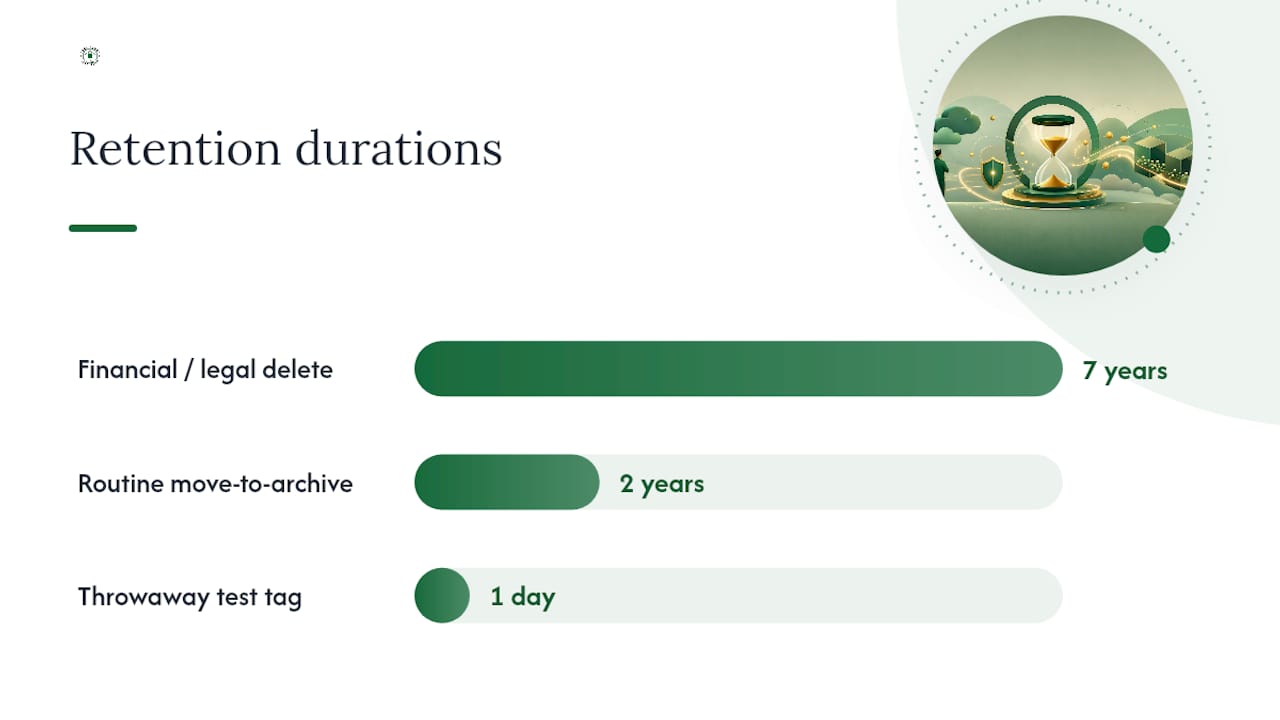
A 7-year delete policy, common for financial and legal records, looks like this:
New-RetentionPolicyTag "7-Year Delete" -Type All -RetentionAction PermanentlyDelete -AgeLimitForRetention 2556 -RetentionEnabled $true
A 2-year move-to-archive tag for routine mail:
New-RetentionPolicyTag "2-Year Archive" -Type All -RetentionAction MoveToArchive -AgeLimitForRetention 730 -RetentionEnabled $true
Once your tags exist, link them into a policy:
New-RetentionPolicy "Standard Mailbox Policy" -RetentionPolicyTagLinks "7-Year Delete","2-Year Archive"
Microsoft's own retention policy documentation walks through additional tag types, including default policy tags and personal tags users can apply themselves.
Pro Tip: Create a throwaway test tag with a short age limit, like one day, and apply it to a dummy mailbox first. You'll see the deletion behavior play out in hours instead of waiting weeks to confirm the logic works.
How Do You Apply Retention Policies to Mailboxes?
Once a policy exists, it does nothing until you assign it. Exchange gives you a UI path and a PowerShell path, and for anything beyond a handful of mailboxes, PowerShell wins on speed and auditability.
- In the Exchange admin center, go to Recipients > Mailboxes, select one or more mailboxes, and open Manage mailbox policies to assign the retention policy directly.
- For bulk assignment, pipe a filtered mailbox list into
Set-Mailbox:
Get-Mailbox -Filter {Department -eq "Finance"} | Set-Mailbox -RetentionPolicy "Standard Mailbox Policy"
- Force immediate processing on your pilot group with
Start-ManagedFolderAssistant -Identity user@domain.com, rather than waiting for the normal weekly cycle.
Before a full rollout, run through a short checklist: confirm the pilot group's policy applied correctly, run the Managed Folder Assistant manually to see results fast, and tell affected users what's changing. If your policy includes a delete action, Outlook will display an expiration date in the message header, and an unannounced deletion notice tends to generate more helpdesk tickets than the policy change itself.
Pro Tip: Send a short email to pilot users explaining what the header notice means before they see it. A two-line heads-up avoids a dozen "is my email broken" tickets.
How Do You Verify a Retention Policy Actually Applied?
Assigning a policy and confirming it works are two different tasks, and skipping the second one is how retention gaps go unnoticed for months. Run these checks after any assignment or bulk change.
Get-Mailbox user@domain.com | Select RetentionPolicyconfirms which policy a specific mailbox is running.Get-RetentionPolicyandGet-RetentionPolicyTaglist every policy and tag defined in your tenant, useful for catching duplicates or orphaned tags.Get-MailboxFolderStatistics -FolderScope RecoverableItemsshows how much space the Recoverable Items subtree is consuming, a number worth checking regularly.
If items aren't expiring on schedule, the Managed Folder Assistant is usually the culprit. It processes mailboxes on a rolling weekly basis by default, not instantly, so a tag that "isn't working" often just hasn't been processed yet. Running Start-ManagedFolderAssistant manually forces the check.
Recoverable Items growth deserves its own watch list. Both retention policies with delete actions and any active hold push preserved items into that folder, and a mailbox that hits its quota there can start rejecting new mail. If a mailbox's Recoverable Items size climbs steadily with no plateau, investigate active holds before you assume it's a retention misconfiguration.

Purview, Litigation Hold, or MRM Tags: Which One Do You Need?
These three mechanisms solve different problems, and using the wrong one for the job either under-protects your organization or drowns it in unnecessary storage costs.
- Microsoft Purview retention policies work across Exchange, Teams, SharePoint, and OneDrive from a single rule set, making them the right default for organization-wide compliance requirements.
- Litigation Hold operates at the mailbox level and overrides deletion actions entirely, preserving everything indefinitely. It's built for active legal, HR, or security investigations, not everyday governance, because it drives up storage and eDiscovery costs fast.
- MRM tags (the classic Exchange system) still handle folder-specific archive movement well, but Microsoft steers admins toward Purview for anything new since it centralizes governance across workloads instead of living only in Exchange.
If you're not sure which applies, ask whether the requirement is "keep this for compliance" (Purview) or "preserve everything, don't let anyone delete it, we're under investigation" (Litigation Hold). MRM tags fill the gap for legacy archive behavior you haven't migrated yet.
Keeping Recoverable Items and Storage Under Control
Retention policies and holds both write to the Recoverable Items folder, and that folder has a quota. Ignore it long enough, and mailboxes start bouncing incoming mail instead of quietly running out of space in the background, which is the worst possible way to discover a retention problem.
A few habits keep this from becoming a fire drill:
- Route move-to-archive actions to archive mailboxes rather than letting primary mailboxes balloon.
- Check Recoverable Items size on a recurring schedule, not just when a user complains about a bounced email.
- Set retention durations based on actual compliance requirements, not "just in case" defaults that quietly inflate storage costs.
- Fold retention verification into your normal IT maintenance routine, using
Start-ManagedFolderAssistantto test changes rather than waiting on the weekly cycle.
Pro Tip: Add a monthly calendar reminder to run the Recoverable Items check across your top ten largest mailboxes. Catching one mailbox climbing toward its quota beats discovering it after mail delivery fails.
When It's Time to Bring in Help for Microsoft 365 Retention
Retention policy work is straightforward until it isn't. A single pilot policy is easy to configure. A tenant running mixed MRM tags, an active Litigation Hold from three years ago nobody remembers assigning, and inconsistent Purview coverage across departments is a different problem entirely, and that's usually when small business owners call Great Plains Networking.
Greatplainsnetworking supports small businesses across Norman, Moore, and Oklahoma City with Microsoft 365 setup and ongoing management, including Purview policy design, Recoverable Items monitoring, and hold cleanup for organizations that have let retention sprawl for years.
- Purview policy planning and rollout, scoped to your actual compliance requirements rather than generic defaults.
- Ongoing monitoring so Recoverable Items growth gets caught before it disrupts mail flow.
- Hold audits for practices, like law firms, that need documented litigation readiness without guessing which mailboxes are still under hold.
If your retention setup has grown organically over several years with no documentation of who applied what, that's the point where a DIY fix risks missing something a compliance audit would flag.
For a law firm or medical practice managing HIPAA or litigation exposure, the cost of getting this wrong outweighs the cost of a consultation.
Where to Learn More About Microsoft 365 Retention
- Create a retention policy in Exchange Online
- Apply a retention policy to mailboxes in Exchange Online
- Retention policies for Exchange (Microsoft Purview)
- Assign and view retention policies on email messages
- Small Business Data Backup Best Practices
What Most Retention Guides Get Wrong
Most retention advice treats Purview, Litigation Hold, and MRM tags as interchangeable knobs to turn until compliance is "handled." That framing misses the actual risk, which isn't picking the wrong mechanism. It's applying the right mechanism without ever checking whether it worked.
The Managed Folder Assistant runs on a weekly cycle by default, and plenty of admins configure a policy, see nothing change after a day, and assume it's broken. It's not. It just hasn't processed yet. That single misunderstanding causes more unnecessary panic than any actual retention failure I've seen discussed in Microsoft's own documentation.
The bigger blind spot is Recoverable Items. Admins plan retention around compliance requirements and almost never around storage math. A mailbox under an old Litigation Hold that nobody remembers assigning can quietly climb toward its quota for years before it bounces a single email, and by then it's an emergency instead of routine maintenance.
If you take one thing from this guide, make it this: build the policy, but put a recurring check on your calendar to confirm it's still doing what you think it's doing. Retention isn't a settings page. It's an ongoing process.
— Nicholas
Get Microsoft 365 Retention Set Up Right the First Time
Greatplainsnetworking gives Oklahoma small businesses a faster path to a working retention setup than the trial-and-error most admins go through alone, since our team configures Purview policies, tests them on a pilot group, and monitors Recoverable Items growth as part of ongoing support rather than a one-time project.

That matters most for practices juggling compliance requirements they can't afford to get wrong, like law firms tracking litigation holds or medical offices managing HIPAA-driven records. We handle the managed IT support side so retention policies get checked as part of normal maintenance, not remembered only when a mailbox bounces mail. If your Microsoft 365 tenant has years of accumulated tags, forgotten holds, or a retention policy nobody has verified lately, request a consultation with Greatplainsnetworking and we'll walk through what's actually running in your tenant today.
Sources
- Create a retention policy in Exchange Online
- Apply a retention policy to mailboxes in Exchange Online
- Retention policies for Exchange (Microsoft Purview)
- Recoverable items folder in Exchange Online
- Assign and view retention policies on email messages | Microsoft Support
Recommended
Want help putting this into practice?
We'll audit your security, speed, and hardware in under an hour — no commitment, no sales pitch. Just a clear roadmap of what to fix and why.