
Intune Device Compliance for IT Admins: Deploy and Enforce

Intune device compliance policies evaluate device health against rules you define, then write a verdict to Microsoft Entra ID. That verdict does nothing on its own. Pair it with Conditional Access, and it becomes the gate that blocks or allows access to corporate resources. Before you build a single policy, run through these three checks:
- Tenant no-policy setting: In the Intune admin center, go to Devices > Compliance > Compliance policy settings and confirm whether devices with no assigned policy are marked Compliant or Not Compliant. The default is Compliant, which creates a security gap.
- Conditional Access linkage: Verify at least one Conditional Access policy in Microsoft Entra ID requires a compliant device as a grant control. Without this, compliance verdicts are advisory only.
- Report-only pilot: Before enforcing, switch your Conditional Access policy to report-only mode and run it for 5–7 days. Review the sign-in logs for unexpected blocks before flipping to enforce.
Compliance policies can check: OS version minimums, disk encryption status (BitLocker, FileVault), antivirus and real-time protection state, PIN or password complexity, jailbreak or root detection, and threat level from Microsoft Defender for Endpoint or a Mobile Threat Defense partner.
Key Takeaways
Intune device compliance policies only enforce access control when paired with Microsoft Entra Conditional Access, making that integration the single most critical step in any compliance deployment.
| Point | Details |
|---|---|
| Compliance requires Conditional Access | A compliance verdict in Intune does nothing without a Conditional Access policy that reads and enforces it. |
| Fix the no-policy default first | Change "devices with no assigned policy" to Not Compliant only after all policies and assignments are in place. |
| Pilot before enforcing | Assign to a small group, run Conditional Access in report-only for 5–7 days, then expand and enforce. |
| Shorten the validity period | The default 30-day compliance validity period allows stale verdicts; 7–14 days is more reliable for most environments. |
| Greatplainsnetworking manages compliance end to end | Greatplainsnetworking designs, deploys, and monitors Intune compliance programs for small businesses in the Oklahoma City metro area. |
Table of Contents
- What are Intune device compliance policies and how do they work?
- Tenant-wide compliance settings and the Level 1/2/3 baseline
- How to create a device compliance policy step by step
- How do noncompliance actions and Conditional Access work together?
- How do you monitor compliance status and troubleshoot noncompliant devices?
- Platform differences and gotchas you should anticipate
- Deployment best practices: pilot, naming, communications, and rollback
- Common pitfalls and configuration mistakes to avoid
- What are the concrete next steps for deploying Intune compliance?
- An operational perspective on compliance from a managed IT provider
- Greatplainsnetworking can help you deploy and manage Intune compliance
- Sources
What are Intune device compliance policies and how do they work?
A device compliance policy is a set of rules that Intune evaluates against a device's reported state. Rules fall into a few broad categories: operating system version requirements, encryption status, password and PIN complexity, firewall and antivirus state, and integration with threat intelligence from Microsoft Defender for Endpoint or Mobile Threat Defense (MTD) partners such as Lookout or Zimperium.
One distinction matters more than any other: compliance policies assess; configuration profiles act. A compliance policy checks whether BitLocker is on. A device configuration profile enforces BitLocker. Admins sometimes conflate the two, then wonder why a device shows noncompliant even after they "fixed" the setting. The fix lives in the configuration profile; the compliance policy just reports the outcome.
The data flow works like this:
- A device checks in with Intune (Windows devices check in roughly every 8 hours; iOS and Android every 8 hours after the first check-in).
- Intune evaluates the device's reported state against assigned compliance policies.
- The compliance verdict (Compliant, Not Compliant, or Not Evaluated) is written to the device record in Microsoft Entra ID.
- When a user attempts to access a resource, Conditional Access reads the Entra ID device record and grants or blocks access based on that verdict.
The compliance verdict is only as useful as the downstream control that consumes it. Many tenants build policies but never wire them to Conditional Access, leaving the environment falsely "green" in the dashboard while devices with outdated OS versions or disabled encryption access corporate email without restriction. The device compliance policies overview confirms that enforcement requires Conditional Access integration.
Enrollment is a prerequisite. Devices must be enrolled in Intune before compliance policies apply. Supported platforms include Windows 10/11, iOS/iPadOS, Android (Android Enterprise and AOSP), macOS, and Linux (Ubuntu 24.04/22.04, RHEL 9). Licensing requires Microsoft Intune Plan 1 at minimum; some advanced features (custom compliance, MTD integration) require Intune Plan 2 or Microsoft Intune Suite add-ons.
Tenant-wide compliance settings and the Level 1/2/3 baseline
The no-policy default and why it matters for Zero Trust
The single most consequential tenant-level toggle is "Mark devices with no compliance policy assigned as: Compliant." Left at the default, any enrolled device without an assigned policy reports as compliant to Conditional Access. That means a brand-new device, a test machine, or a device that slipped through assignment gaps gets a green light to access corporate resources. Flipping this to Not Compliant closes the gap, but do it only after your policies and assignments are ready. Changing it prematurely locks out every unassigned device simultaneously.
The second tenant setting worth reviewing is the compliance status validity period, which defaults to 30 days. A device that checked in 29 days ago still shows compliant even if it has been offline and unpatched since then. Shorter validity windows (7–14 days for high-security environments) increase accuracy at the cost of more frequent check-ins.
Level 1, 2, and 3 baselines
Microsoft's deployment plan structures compliance rollout in three tiers. Use this as a practical sequence, not a rigid checklist.
Level 1 (minimal) covers the checks every tenant should have before anything else:
- Minimum OS version (e.g., Windows 11 22H2 or later, iOS 16 or later)
- Password or PIN required
- Encryption required (BitLocker for Windows, device encryption for iOS/Android)
- Device not jailbroken or rooted (iOS/Android)
Level 2 (enhanced) adds enforcement depth:
- Real-time antivirus protection enabled
- Firewall enabled
- Antivirus definitions up to date
- Compliance policy refresh interval tuned (reduce from 30 days to 7–14 days)
- Require device lock after inactivity
Level 3 (advanced) is for environments with elevated risk or regulatory requirements:
- Microsoft Defender for Endpoint threat level integration (require "Secured" or "Low" threat level)
- MTD partner integration (Lookout, Zimperium, or similar) for mobile threat signals
- Custom compliance rules via detection scripts and JSON
- Compliance validity period shortened to 3–7 days
- Automated noncompliance actions: remote lock after grace period, retire after extended noncompliance
Pro Tip: Before flipping the no-policy default to Not Compliant, create your baseline policies and assign them to a pilot group first. Confirm those devices show Compliant in the dashboard. Then expand assignments to all devices, wait one full check-in cycle, and only then change the tenant default. This sequence prevents mass lockouts.
How to create a device compliance policy step by step
The create-policy workflow follows a consistent sequence regardless of platform. Here is the full operational flow:
- Navigate to the admin center. Go to Intune, select Devices, then Compliance, then Create policy.
- Select platform. Choose Windows 10 and later, iOS/iPadOS, Android Enterprise, macOS, or Linux. The platform selection determines which settings are available in the next step.
- Name and describe the policy. Use a naming convention that includes platform, environment, and purpose. Example:
WIN-CORP-Baseline-L1oriOS-BYOD-Enhanced-L2. Consistent naming pays off when you have 20 policies across five platforms. - Configure compliance settings. Set OS version minimums, encryption requirements, password rules, and any threat-level thresholds. For Windows, this includes Health Attestation settings (Secure Boot, code integrity). For Android Enterprise, you select the enrollment type (fully managed, work profile, dedicated) because available settings differ.
- Add custom compliance (optional). For Windows and Linux, you can upload a PowerShell detection script and a JSON file that defines expected values. This extends compliance checks to settings Intune does not natively evaluate, such as a specific registry key or a custom security agent version.
- Configure actions for noncompliance. At minimum, add "Mark device noncompliant" immediately. Add an email notification to the user and a push notification. Set a grace period (typically 24–72 hours) before the device is formally marked noncompliant in Entra ID, giving users time to self-remediate.
- Assign scope tags. Scope tags control which admin roles can see and manage this policy. Assign them consistently with your RBAC model.
- Set assignments. Assign to Azure AD groups. Avoid assigning to "All Devices" or "All Users" for a new policy. Start with a pilot group of 10–20 devices.
- Review and create. Review the summary, confirm platform and settings, then create.
Platform callouts
- Windows: Health Attestation requires TPM 2.0. BitLocker compliance checks require that the recovery key is escrowed to Entra ID, not just that BitLocker is enabled.
- iOS/iPadOS: Jailbreak detection runs at check-in; it does not run continuously. PIN enforcement through compliance policy requires the user to set a PIN; it does not push a configuration profile that forces one.
- Android Enterprise: Settings vary significantly between fully managed, work profile, and dedicated device enrollment types. Device Administrator mode is deprecated; migrate to Android Enterprise before building new policies.
- macOS: FileVault compliance requires the recovery key to be escrowed via Intune. Personal Recovery Key escrow is a separate configuration profile step.
- Linux: Supported distributions include Ubuntu 24.04, Ubuntu 22.04, and RHEL 9. Custom compliance via scripts is the primary mechanism; built-in checks are limited compared to Windows.
Pro Tip: Validate custom compliance scripts on a single enrolled test device before assigning broadly. A JSON schema error or a script that returns an unexpected data type will mark every assigned device noncompliant the moment the policy applies.
How do noncompliance actions and Conditional Access work together?
Actions for noncompliance
Actions for noncompliance are the responses Intune takes when a device fails a compliance check. They are configured per policy and execute on a schedule you define. Common actions include:
- Mark device noncompliant: Updates the compliance verdict in Entra ID. This is the action that Conditional Access reads.
- Send email to end user: Sends a customizable notification from the Company Portal. Useful for first-notice communication.
- Send push notification: Delivers a notification through the Company Portal app on the device.
- Remotely lock the device: Supported on iOS, Android, and Windows (with some caveats). Not available on macOS via compliance policy.
- Retire the device: Removes corporate data and unenrolls the device. Reserve this for extended noncompliance or lost/stolen scenarios.
A practical sequencing example:
- Day 0: Device fails compliance check. Send email and push notification immediately.
- Day 1: Grace period ends. Mark device noncompliant in Entra ID (Conditional Access now blocks access).
- Day 3: Send a second email reminder.
- Day 7: Remote lock if device remains noncompliant.
- Day 14: Retire if no remediation.
Integrating with Conditional Access
Conditional Access in Microsoft Entra ID reads the compliance verdict written by Intune and uses it as a grant control. The policy structure is: If user is in scope AND device is not compliant, Then block access (or require MFA as a fallback).
Before enforcing, follow this sequence:
- Create the Conditional Access policy with Report-only mode enabled.
- Run it for 5–7 days and review sign-in logs in Microsoft Entra ID for unexpected blocks.
- Use the What If tool in Conditional Access to simulate specific user/device combinations.
- Exclude emergency break-glass accounts from all Conditional Access policies. These accounts should never be blocked by compliance enforcement.
- Switch to Enforce mode only after the report-only analysis confirms the blast radius is acceptable.
One operational warning: noncompliance actions and Conditional Access are separate controls. A device can be marked noncompliant in Intune but still access resources if no Conditional Access policy enforces the compliance requirement. Configure both.
How do you monitor compliance status and troubleshoot noncompliant devices?
Using the compliance dashboard
The Device compliance dashboard provides four primary views: overall device status (compliant, noncompliant, not evaluated, in grace period), per-policy compliance rates, per-setting status tiles showing which specific settings are failing most often, and device-level detail showing each setting's pass/fail reason.
After initial policy application, devices can take up to 24 hours to report compliance status, assuming they are online and have checked in. Do not treat a "not evaluated" status as compliant during this window.
Some compliance settings are device-reported rather than independently validated by Intune. Treat unusual values in device-reported fields with skepticism and verify before acting on them.
Troubleshooting checklist
Work through these steps in order when a device shows unexpected noncompliance or a suspicious compliant status:
- Check last check-in time. If the device has not checked in within the expected interval, the compliance verdict may be stale. Force a sync from the Company Portal app or the Intune admin center.
- Verify policy assignment. Confirm the compliance policy is assigned to a group the device belongs to. A device with no assigned policy shows compliant by default (unless you changed the tenant setting).
- Inspect per-setting reasons. In the device's compliance detail view, expand each failed setting to see the specific reason. "BitLocker not enabled" and "Recovery key not escrowed" are different problems with different fixes.
- Verify MTD or Defender health. If the policy requires a threat level from Microsoft Defender for Endpoint or an MTD partner, confirm the connector is active and the device is onboarded. A disconnected connector marks all devices at the maximum threat level.
- Check client-driven evaluation availability. Windows devices support on-demand compliance evaluation via PowerShell (
Start-MpScanis not the right tool; use the Intune Management Extension or the Intune admin center sync command). - Validate custom script output. If a custom compliance script is in scope, run it manually on the device and compare the output to the JSON schema. A mismatch in data type (string vs. integer) will fail the check silently.
A device that looks compliant on the dashboard is not necessarily secure. The no-policy default, a stale compliance validity period, or an enrollment gap can all produce a green status that Conditional Access honors without question. Practitioners consistently find that drilling into per-device compliance details, rather than relying on dashboard summaries, is the only reliable way to catch these gaps.
Pro Tip: *Schedule a monthly compliance review. Set up an Intune alert or a Power Automate flow that notifies your team when the noncompliant device count crosses a threshold you define.
Platform differences and gotchas you should anticipate
Each OS family has behaviors that catch admins off guard. The table below summarizes key compliance capabilities and known limitations per platform.
| Platform | Encryption check | PIN/password enforcement | Threat level integration | Custom compliance | Notable gotcha |
|---|---|---|---|---|---|
| Windows 10/11 | BitLocker (requires Entra key escrow) | Yes | Defender for Endpoint, MTD | Yes (PowerShell + JSON) | Health Attestation requires TPM 2.0 |
| iOS/iPadOS | Device encryption (always on) | Yes (compliance reports; config profile enforces) | MTD partners (Lookout, Zimperium) | No | Jailbreak detection is check-in only, not continuous |
| Android Enterprise | Yes (work profile, fully managed) | Yes | Defender for Endpoint, MTD | No | Device Admin mode deprecated; settings vary by enrollment type |
| Android AOSP | Limited | Limited | Limited | No | Minimal compliance settings; not suitable for high-security use cases |
| macOS | FileVault (requires key escrow) | Yes | Limited MTD support | No | FileVault escrow is a separate config profile step |
| Linux | Limited built-in | Limited | No native Defender integration | Yes (scripts required) | Supported only on Ubuntu 22.04/24.04 and RHEL 9 |
Windows specifics
Windows compliance relies heavily on Health Attestation, which queries the device's TPM chip for Secure Boot status, code integrity, and BitLocker state. Devices without TPM 2.0 cannot satisfy Health Attestation requirements. BitLocker compliance specifically checks that the recovery key is escrowed to Entra ID, not just that encryption is active. A device with BitLocker enabled but the key stored locally will fail this check.

Android specifics
Android Enterprise splits into several enrollment types: fully managed (corporate-owned, full device management), work profile (BYOD, personal device with a managed work container), and dedicated (kiosk-style). Compliance settings available in each type differ. Device Administrator enrollment is deprecated by Google and Microsoft; any remaining Device Admin-enrolled devices should be migrated to Android Enterprise before new compliance policies are applied.
Linux specifics
Linux compliance is primarily custom compliance via detection scripts. Built-in checks cover basic settings, but most meaningful security posture checks require a PowerShell or bash script paired with a JSON definition file. Supported distributions are Ubuntu 22.04, Ubuntu 24.04, and RHEL 9. The Microsoft Intune app for Linux must be installed and the device enrolled before any compliance policy applies.
Deployment best practices: pilot, naming, communications, and rollback
Pilot strategy
A staged rollout prevents a misconfigured policy from locking out your entire organization. Follow this sequence:
- Create the policy and assign it to a pilot group of 10–20 devices representing the target platform mix.
- Set Conditional Access to report-only for the corresponding policy.
- Monitor for 5–7 days. Review the compliance dashboard and Entra ID sign-in logs.
- Use the Conditional Access What If tool to simulate edge cases (shared devices, service accounts, break-glass accounts).
- Expand assignment to a broader group (25–50% of target devices).
- After another monitoring cycle, expand to full assignment.
- Switch Conditional Access from report-only to enforce.
Naming and scoping conventions
Consistent naming makes policies manageable at scale. A reliable format: [PLATFORM]-[ENVIRONMENT]-[PURPOSE]-[LEVEL]. Examples: WIN-CORP-Baseline-L1, iOS-BYOD-Enhanced-L2, LINUX-DEV-Custom-L3. Scope tags should mirror your RBAC model. If your helpdesk team manages only Windows devices, their scope tag should exclude iOS and macOS policies from their view.
User communication plan
Users who receive a noncompliance notification without context will call your helpdesk. Prepare before enforcement:
- Draft a plain-language email template explaining what noncompliance means, what the user needs to do (update OS, enable encryption, set a PIN), and who to contact for help.
- Brief your helpdesk team with a script covering the three most common noncompliance reasons per platform.
- Set realistic SLA expectations: most self-remediation steps take under 15 minutes; escalations involving BitLocker recovery or device re-enrollment take longer.
For small businesses managing diverse device fleets, the IT services checklist for small businesses provides a practical framework for aligning compliance rollouts with broader IT governance.
Rollback and emergency access
- Maintain at least two break-glass accounts in Entra ID that are excluded from all Conditional Access policies. These accounts should have strong passwords, MFA enforced separately, and their usage should trigger an alert.
- If a compliance policy causes unexpected mass noncompliance, the fastest rollback is to remove the policy assignment from the affected group, not to delete the policy. Deletion is permanent; removing the assignment is reversible.
Common pitfalls and configuration mistakes to avoid
These are the errors that produce either false security or user disruption, sometimes both at once.
- Leaving the no-policy default as Compliant. Every unenrolled or unassigned device gets a free pass to Conditional Access. This is the most common misconfiguration in new Intune tenants and the one with the broadest blast radius.
- Overlapping policies with conflicting checks. When two policies assign to the same device and one requires Windows 11 22H2 while the other requires 23H2, the device must satisfy both. Intune applies the most restrictive setting across all assigned policies. Audit assignments regularly to prevent unintended conflicts.
- Immediate blocking without a grace period. Setting "Mark device noncompliant" with a zero-day grace period and enforcing Conditional Access simultaneously will lock out users the moment a policy applies. Always build in at least 24 hours for self-remediation.
- Custom compliance script errors. A script that returns a null value, an unexpected data type, or exits with an error code will mark every assigned device noncompliant. Test on one device, review the output in the Intune admin center's device compliance detail view, and confirm the JSON schema matches before broad assignment.
- Ignoring the compliance validity period. A 30-day validity period means a device that went offline 29 days ago still shows compliant. For environments with sensitive data, shorten this to 7–14 days. For high-security environments, 3–5 days is appropriate.
- Treating the dashboard summary as ground truth. The dashboard aggregates reported values. A device that has not checked in, a connector that is offline, or a stale verdict can all produce a compliant status that does not reflect reality.
Pro Tip: Run a quarterly assignment audit. Export the list of all compliance policies and their assigned groups, then cross-reference against your device inventory. Any device not covered by at least one policy is a gap, regardless of the tenant default setting.
What are the concrete next steps for deploying Intune compliance?
Start with these four actions, in order:
- Check the tenant no-policy setting. Go to Devices > Compliance > Compliance policy settings and document the current value. Do not change it yet; just know where you stand.
- Create a Windows minimal baseline (Level 1). Build a policy covering OS version, BitLocker, and password requirements. Assign it to a pilot group. Confirm devices show Compliant before expanding.
- Enable report-only Conditional Access. Create a Conditional Access policy requiring a compliant device for your target apps (start with Exchange Online and SharePoint). Set it to report-only. Review sign-in logs after 5–7 days.
- Schedule a compliance review cadence. Block 30 minutes monthly to review the compliance dashboard, check noncompliance trends, and verify that policy assignments cover all enrolled devices.
For deeper platform-specific guidance, the following Microsoft Learn pages are the authoritative references:
- Device compliance policies overview
- Create a compliance policy
- Monitor compliance policy results
- Conditional Access grant controls
- Compliance deployment plan
For custom compliance scripting, the create-policy documentation covers the JSON schema requirements and script prerequisites. For MTD integration, the Defender for Endpoint connector documentation in Microsoft Learn covers the onboarding steps for both Windows and mobile platforms.
Pairing compliance policies with broader network security controls gives you a more complete Zero Trust posture than device compliance alone.
An operational perspective on compliance from a managed IT provider
The most common failure mode in small-business Intune deployments is not a misconfigured setting. It is a compliance policy that was built, assigned, and then never revisited. The dashboard shows green, the admin moves on, and six months later a device running an OS version from two years ago has been accessing corporate email without interruption because the compliance validity period expired and nobody noticed.
The second most common failure is the opposite: an admin flips the no-policy default to Not Compliant before assignments are ready, locks out half the organization, and spends a day in recovery mode. Both failures are preventable with the same discipline: pilot first, monitor actively, and change one variable at a time.
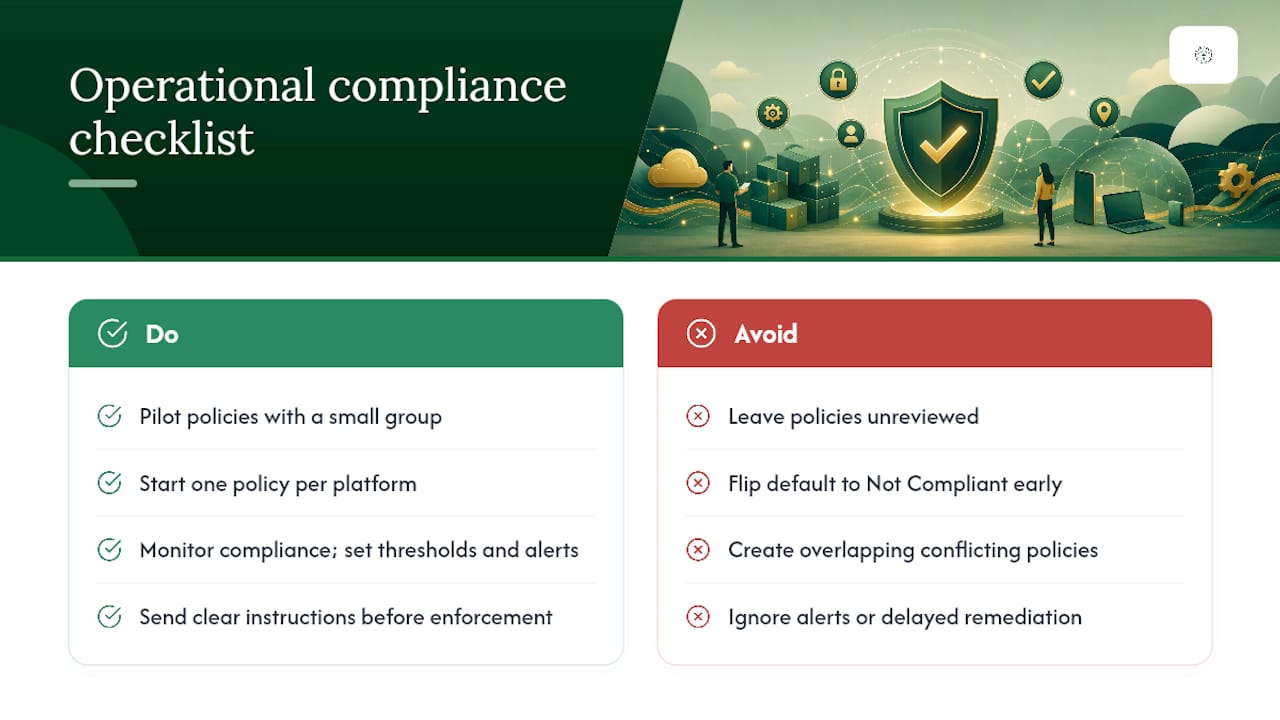
For small businesses specifically, the user communication piece is often underestimated. A dental practice or law firm with 20 employees does not have a dedicated helpdesk. When a compliance policy marks a device noncompliant and Conditional Access blocks email access, that user calls the owner, not an IT queue. Clear, plain-language notifications sent before enforcement begins prevent most of those calls. The notification should tell the user exactly what to do, not just that something is wrong.
From an operational standpoint, a one-policy-per-platform baseline is the right starting point. One Windows policy, one iOS policy, one Android Enterprise policy. Keep them minimal (Level 1) until you have verified they work cleanly across your device inventory. Add Level 2 and Level 3 controls in a second phase, after the baseline is stable. Overlapping policies with conflicting settings are harder to troubleshoot than a single well-tested policy, and the compliance dashboard does not always make the source of a conflict obvious.
The 24/7 monitoring approach that works for infrastructure works equally well for compliance: set thresholds, get alerts, and triage the same day. A noncompliant device that gets remediated within hours is a non-event. One that sits noncompliant for two weeks while accessing corporate data is a liability.
Greatplainsnetworking can help you deploy and manage Intune compliance
Managing Intune device compliance policies across Windows, iOS, Android, and macOS devices takes more than a one-time setup. It requires ongoing monitoring, policy updates as OS versions change, and a clear remediation process when devices fall out of compliance.
Greatplainsnetworking provides managed IT support for small businesses in Norman, Moore, and Oklahoma City, including full Intune compliance policy design, Conditional Access pairing, and 24/7 device monitoring. Services include:
- Compliance policy design and Level 1/2/3 baseline configuration
- Conditional Access integration and report-only pilot management
- Device onboarding and enrollment support across all platforms
- End-user notification templates and helpdesk scripts for noncompliance events
- Remediation playbooks and same-day triage for newly noncompliant devices
- Cybersecurity monitoring including Defender for Endpoint integration and MTD connector management
No long-term contracts. Same-day response. If your organization needs a compliance program that actually enforces, not just reports, contact Greatplainsnetworking for an assessment.
Sources
The following Microsoft Learn pages and practitioner resources form the authoritative backbone for this guide:
- Device compliance policies in Microsoft Intune
- Create a compliance policy - Microsoft Learn
- Monitor results of your Intune device compliance policies - Microsoft Learn
- Microsoft Intune compliance policy troubleshooting guide - Decryption Digest
- Understanding Intune’s Compliance Misleading Defaults – SalmanTechBlogs
Recommended
Want help putting this into practice?
We'll audit your security, speed, and hardware in under an hour — no commitment, no sales pitch. Just a clear roadmap of what to fix and why.