
Keep Overrides Under 5%: Microsoft 365 DLP Rollout for IT Admins

Microsoft Purview Data Loss Prevention is Microsoft 365's built-in system for finding, monitoring, and restricting sensitive data across Exchange, SharePoint, OneDrive, Teams, and endpoint devices. The right way to deploy it is never a full-force rollout on day one. Move through discovery, audit-only monitoring, a notification-based pilot, then controlled enforcement, in that order. Licensing tier and admin role assignments determine which locations and actions are even available to you, so check those before you design a single policy.
TL;DR:
- Using Microsoft 365 DLP effectively requires a phased approach starting with discovery, followed by audit-only, pilot with notifications, and finally controlled enforcement.
- Endpoint DLP skillfully extends data protection to local device actions but only works on devices enrolled in Defender for Endpoint and is more disruptive if deployed prematurely.
- Coverage includes email, files at rest, chat messages, endpoint activities, and third-party SaaS apps through Defender for Cloud Apps, with detection relying on pattern matching, classifiers, and labels.
- Licensing dictates available features: E3 includes core DLP, while E5 unlocks Endpoint DLP and advanced classifiers, requiring license audits to avoid gaps.
- DLP incident data is retained differently across portals, with Purview logs lasting 30 days and Defender for up to six months, necessitating long-term storage strategies.
Table of Contents
- What Does Microsoft 365 Data Loss Prevention Cover?
- Which Microsoft 365 License Do You Need for DLP?
- How Do You Plan a DLP Rollout in Microsoft 365?
- How Do You Design a DLP Policy in Microsoft 365?
- What Are the Phases of a Microsoft 365 DLP Rollout?
- How Do You Configure DLP Detection and Endpoint Settings?
- Where Do DLP Alerts and Incidents Get Reviewed?
- What Are Purview DLP's Limitations?
- A Small-Business Reality Check on DLP
- Get Help Running DLP Without the Overhead
- Sources
- FAQ
What Does Microsoft 365 Data Loss Prevention Cover?
Purview DLP polices content wherever Microsoft 365 stores or moves it. That reach is broader than most admins assume when they first open the compliance portal.
Coverage spans these locations:
- Exchange Online — scans email content and attachments in transit and at rest.
- SharePoint and OneDrive — monitors files at rest and blocks or warns on risky sharing.
- Microsoft Teams — inspects chat messages and channel content, including shared files.
- Endpoint devices — Endpoint DLP extends policies to what users do locally: copying to USB, printing, or pasting into a browser.
- Microsoft 365 Copilot interactions — DLP conditions can restrict what sensitive content Copilot surfaces or references.
- Defender for Cloud Apps — extends DLP-style detection into third-party SaaS apps and unsanctioned cloud storage.
Detection relies on three engines working together: built-in sensitive information types (SITs) that pattern-match things like Social Security numbers or credit card formats, trainable classifiers that use machine learning to recognize document categories such as contracts or resumes, and sensitivity labels applied through Microsoft Information Protection that carry protection settings with the file itself.
Once a policy detects a match, it can trigger a range of protective actions. Policy tips warn a user in real time before they finish sending a risky email or sharing a file. Escalating from there, you can require justification for an override, restrict access outright, apply encryption, or block the action entirely. Microsoft Purview's data security documentation is clear that which of these actions is available depends heavily on the location and the license attached to the tenant, which is exactly where a lot of rollout plans go sideways.
Which Microsoft 365 License Do You Need for DLP?
Not every DLP feature ships in every plan, and that gap catches admins off guard mid-deployment more often than it should.
Microsoft 365 E3 includes core DLP for Exchange, SharePoint, OneDrive, and Teams. E5 (or the standalone Compliance add-ons) unlocks Endpoint DLP, advanced trainable classifiers, and deeper Defender for Cloud Apps integration. If your tenant runs E3 today, budget for add-on licensing before you promise endpoint coverage to leadership.
Prerequisites worth confirming before you touch policy design:
- Compliance Administrator or Security Administrator role assignment for whoever builds and manages policies.
- Endpoint DLP requires devices onboarded to Microsoft Defender for Endpoint first. No onboarding, no data.
- Defender for Cloud Apps integration needs its own connector setup for each third-party app you want visibility into.
- macOS endpoint support trails Windows in feature parity. Some actions available on Windows devices simply are not exposed the same way on Mac.
Pro Tip: Run a license audit against your actual data footprint before you scope any policy. It is common for a tenant to hold E5 licenses for finance and leadership but E3 for the rest of the staff, which silently limits where Endpoint DLP can enforce.
How Do You Plan a DLP Rollout in Microsoft 365?
The single most useful habit in DLP planning is writing a policy intent statement before you open the Purview portal at all. One sentence: what data, in what location, protected by what action, for what reason. "Block external sharing of files tagged Confidential from the Finance SharePoint site, because client financial statements live there." That sentence becomes your scoping, your conditions, and your action, almost line for line. Microsoft's design guidance recommends this exact mapping exercise, and skipping it is why so many policies end up either too loose to matter or too strict to survive contact with real users.
Before writing intent statements, inventory what you are actually protecting:
- List your locations. Which SharePoint sites, OneDrive accounts, and Teams hold regulated or sensitive material.
- Catalog file types and formats. PDFs, Office documents, and CAD files behave differently under DLP scanning.
- Map business processes. Payroll, client intake, patient records. Each process usually maps to a distinct policy.
- Flag high-risk user groups. Finance, HR, and anyone with broad external sharing permissions deserve earlier scrutiny.
For prioritization, Microsoft's own planning guidance points to a consistent starting place: external sharing controls on SharePoint and OneDrive, plus Exchange detection for outbound email carrying sensitive data. Teams message monitoring usually comes next, once the first two are stable. That order isn't arbitrary. Small-business tenants in particular see more real leaks through careless email forwards and public sharing links than through any exotic attack vector, so starting there returns the most protection for the least disruption.
How Do You Design a DLP Policy in Microsoft 365?
Every DLP policy breaks down into four working parts: scope (which locations and users it applies to), conditions (the sensitive information types, labels, or classifiers that trigger it), rules (the logic connecting conditions to outcomes), and actions (what happens on a match).
A HIPAA-driven policy for a dental practice, for example, might scope to the SharePoint site holding patient records, set conditions to detect the built-in "U.S. Health Insurance Card Number" sensitive information type plus a custom classifier trained on intake forms, and set the rule to trigger only when three or more instances appear in a single file, not one stray number that could be a false positive.
Configuration choices that determine how a policy actually behaves in production:
- Instance count thresholds — requiring multiple matches before triggering cuts down false positives dramatically.
- Confidence levels — SITs report a confidence score, and raising the threshold trades some detection sensitivity for fewer nuisance alerts.
- Boolean logic between conditions — "AND" narrows a rule, "OR" broadens it, and getting this backward is a common source of alert fatigue.
- Override workflows — deciding whether users can justify and proceed past a warning, or whether the action is a hard block with no exception path.
Getting these settings right the first time is rare. Expect to revisit thresholds after your pilot phase surfaces real-world behavior nobody predicted from a whiteboard.
What Are the Phases of a Microsoft 365 DLP Rollout?
Microsoft's own deployment documentation lays out a phased sequence built around one idea: start with the least disruptive configuration and harden gradually as data confirms the policy behaves correctly.
- Discovery. Run policies in a data-only mode with no actions enabled, purely to see what would have matched.
- Audit-only. Enable the policy but suppress all user-facing actions. You are watching, not intervening.
- Pilot with notifications. Turn on policy tips for a limited user group so they see warnings, but nothing blocks yet.
- Pilot with overrides. Allow restrictive actions but let users justify and bypass them, capturing every override reason.
- Controlled enforcement. Remove the override option for the policies that have proven themselves, and expand scope to the full organization.
Set exit criteria before each phase begins, not after. A workable target is an override rate under 5% and false-positive-driven helpdesk tickets under 2% of the pilot group, a benchmark echoed in Microsoft's own tuning guidance. If those numbers hold for two consecutive weeks, move to the next phase.
Pro Tip: Pick your pilot group deliberately, not by convenience. IT staff make poor pilot subjects because they route around blocks reflexively. A cross-section of actual finance or HR users gives you a truer signal.
How Do You Configure DLP Detection and Endpoint Settings?
Choosing between a built-in sensitive information type and a trainable classifier comes down to structure. SITs excel at pattern-matched data: Social Security numbers, passport numbers, bank routing codes. Trainable classifiers handle unstructured judgment calls, like recognizing "this looks like an employment contract" across wildly different formatting. Most mature policies use both, layered.
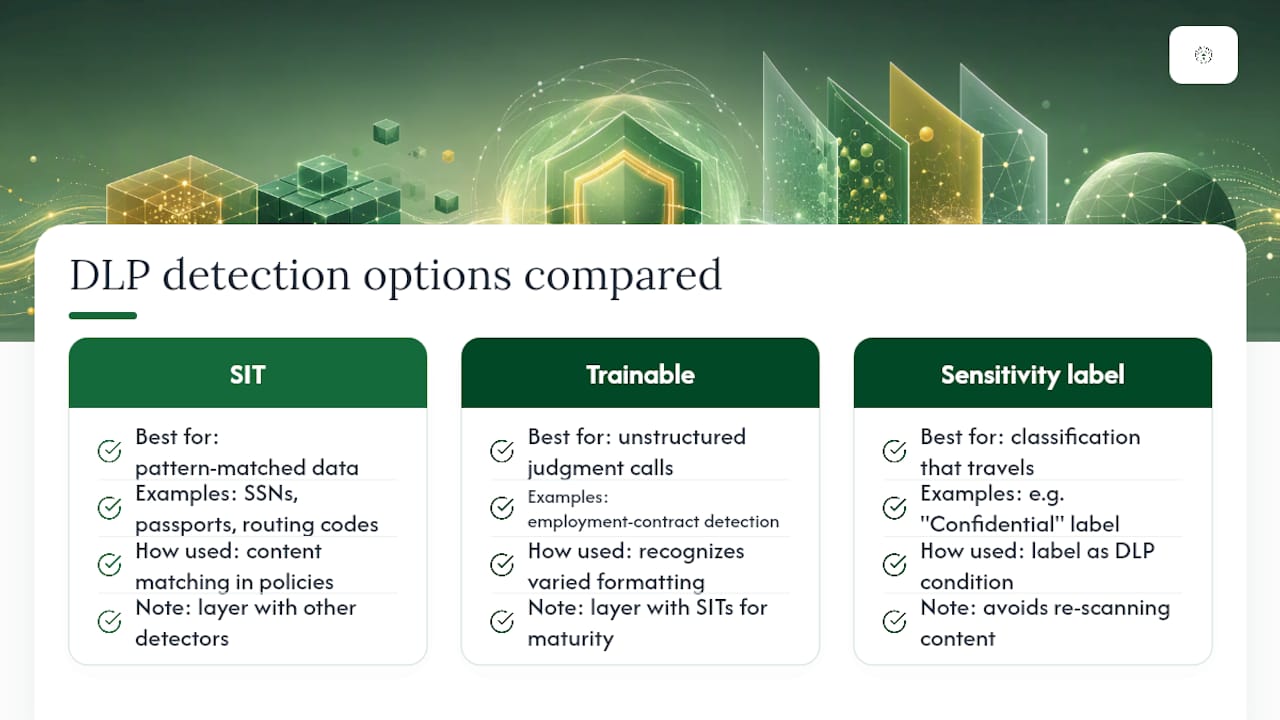
Sensitivity labels add a second dimension entirely. A label like "Confidential" applied through Microsoft Information Protection travels with the file, and DLP policies can key off that label as a condition rather than re-scanning content every time. Combining labels with DLP conditions is how larger tenants avoid re-litigating classification logic in every single policy.
Endpoint DLP configuration deserves its own caution. It governs actions like copying to removable media, printing, or pasting sensitive content into unmanaged apps, but it only reaches devices already onboarded to Defender for Endpoint, and Windows still leads macOS in supported actions.
Endpoint DLP is powerful but genuinely likely to disrupt normal user workflows if enforced too early. A practitioner review of Purview's policy builder makes the case plainly: pilot and audit phases aren't optional steps for endpoint policies, they're the only thing standing between you and a flood of blocked, legitimate work.
Defender for Cloud Apps extends this same detection logic into third-party SaaS platforms your tenant doesn't natively control, closing part of the gap Purview leaves on its own.
Where Do DLP Alerts and Incidents Get Reviewed?
Two portals hold DLP activity, and they don't retain it for the same length of time. That distinction trips up more compliance reviews than almost anything else in the platform.
- Microsoft Purview compliance portal — native DLP alerts and incident reports, retained for roughly 30 days.
- Microsoft Defender portal — the same underlying activity, surfaced with a retention window of up to six months.
According to Microsoft's own documentation, that six-month-versus-30-day gap is deliberate, not a bug, and it means any audit that needs a longer look-back has to happen through Defender, not the native Purview alerts view.
A workable review loop looks like this: a designated compliance owner checks incidents weekly during pilot phases, daily once enforcement goes live on a sensitive policy. Every override gets a documented reason. Every recurring false positive gets logged as a candidate for threshold tuning, not just dismissed. For anything that needs to survive longer than Purview's native window, export the data or route it into a SIEM with longer retention. Waiting until day 29 to decide you need historical data is a lesson you only need to learn once.
What Are Purview DLP's Limitations?
Purview is comprehensive, not complete. Knowing where it stops matters as much as knowing where it starts.
Documented gaps include weak coverage for image-based content requiring OCR, CAD files, and source code formats. Mixed-OS environments see uneven feature parity between Windows and macOS. Policy changes also don't propagate instantly. A review of common Purview limitations notes that organizations routinely need to measure and account for propagation delay, since assuming a policy is "live" the moment you save it can leave a real window of unprotected exposure.
- Measure actual propagation time in your tenant rather than assuming immediate enforcement.
- Layer in Data Security Posture Management (DSPM) or third-party DLP tools for coverage outside Microsoft 365 entirely.
- Document known gaps explicitly for legal and compliance stakeholders. An honest gap list is worth more than a false sense of complete coverage.
Pro Tip: If your business handles regulated data across a non-Microsoft SaaS tool, don't assume Defender for Cloud Apps closes that gap automatically. Confirm the specific app has an active connector before you rely on it.
A Small-Business Reality Check on DLP
Most of the DLP guidance online is written for enterprise security teams with dedicated compliance staff. That's not who's actually running Microsoft 365 for a ten-person dental practice or a twenty-person accounting firm in Oklahoma. For those tenants, the honest priority order is external sharing controls first, Exchange outbound mail second, and Endpoint DLP dead last, only after the simpler policies have proven stable.
Endpoint DLP in particular deserves restraint from a small IT team. It's the policy category most likely to block a legitimate workflow at the worst possible moment, and without a pilot phase, that shows up as a support call, not a security win. Reviewing DLP incidents and tuning thresholds is ongoing work, not a one-time project, which is exactly the kind of recurring operational load that 24/7 monitoring is built to absorb for teams without a dedicated compliance analyst on staff.
— Nicholas
Get Help Running DLP Without the Overhead
Managed IT providers often handle Microsoft 365 environments and perform ongoing DLP tuning, which can be time-consuming for internal IT teams without dedicated resources. Our Microsoft 365 Support service handles policy configuration, pilot monitoring, and threshold tuning as part of ongoing tenant management, not a one-time project that gets forgotten after go-live.
Running 24/7 monitoring across client environments allows incident review and alert triage to happen continuously rather than being delayed. That pairs naturally with our Cybersecurity and Backup & Recovery services, so a DLP policy tip is one signal among many being watched, not an isolated alert sitting unread in a portal. If your practice or firm is planning a DLP rollout and wants a second set of eyes before enforcement goes live, request a free network assessment and we'll walk through your current Microsoft 365 setup together.
Sources
For hands-on configuration steps, Microsoft's own training module on implementing Purview DLP walks through policy creation and enforcement. For rollout sequencing templates on larger Purview and Fabric deployments, see this 90-day Purview rollout playbook. If your DLP scope touches Copilot or other AI tools, review sovereign AI deployment practices for handling sensitive data those tools can access.
FAQ
What Is Data Loss Prevention in Microsoft 365?
It's Microsoft Purview's built-in system for detecting and restricting sensitive data across Exchange, SharePoint, OneDrive, Teams, and endpoint devices, using pattern matching, trainable classifiers, and sensitivity labels to trigger warnings or blocks.
How Do I Implement DLP in Microsoft 365?
Start with discovery in data-only mode, move to audit-only, then pilot with notifications and overrides before enabling full enforcement, tuning thresholds at each phase using the deployment guidance Microsoft provides.
Does Microsoft 365 Include Antivirus Protection?
Yes, through Microsoft Defender Antivirus, but that's a separate capability from DLP. Antivirus stops malware; DLP stops sensitive data from leaving through email, sharing links, or endpoint actions.
Does Microsoft Have a Dedicated DLP Solution?
Yes. Microsoft Purview Data Loss Prevention is Microsoft's native DLP platform, built into Microsoft 365 compliance licensing rather than sold as a separate standalone product.
Which Microsoft 365 License Includes Endpoint DLP?
Endpoint DLP requires Microsoft 365 E5 or the equivalent Compliance add-on licensing, plus devices onboarded to Microsoft Defender for Endpoint before policies can enforce locally.
How Long Are DLP Alerts Retained?
Native Purview alerts are retained for roughly 30 days, while the same activity surfaced through the Microsoft Defender portal is retained for up to six months, according to Microsoft's documentation.
Recommended
Want help putting this into practice?
We'll audit your security, speed, and hardware in under an hour — no commitment, no sales pitch. Just a clear roadmap of what to fix and why.