
150 Mailboxes for IT Teams: Microsoft 365 Email Migration, 300s MX TTL

Match your migration method to mailbox count: cutover for 150 or fewer mailboxes, staged or hybrid for larger or more complex environments, IMAP for non-Exchange sources, and cross-tenant for tenant consolidations. A low-downtime migration approach involves pre-staging a full sync, lowering your MX TTL shortly before cutover, running a final delta sync, flipping MX in a planned window, and keeping the old system live until verification.
TL;DR:
- A cutover migration is suitable for organizations with up to 150 mailboxes, as larger counts increase sync time and error risks.
- Pre-migration steps must include inventorying all email-related systems, verifying DNS records, and lowering MX TTL to reduce downtime.
- The final cutover requires coordinated DNS record updates and immediate post-flip testing to confirm mail flow, calendar access, and permissions.
- Small businesses generally complete migration within one to two weeks, while larger or complex environments may take several weeks to months.
- Outsourcing to a managed provider is advisable when handling compliance, complex permissions, or extensive integrations to minimize risks and support needs.
Table of Contents
- Choosing the Right Microsoft 365 Migration Method
- Building Your Pre-Migration Checklist: Inventory, DNS, and Backups
- How to Execute a Microsoft 365 Email Migration Step by Step
- Fixing Post-Cutover Problems Before They Flood Your Helpdesk
- How Long Does a Microsoft 365 Email Migration Take?
- When a Managed Migration Makes More Sense Than DIY
- Get Microsoft 365 Migration Support in Norman, Moore & OKC
- Sources
Choosing the Right Microsoft 365 Migration Method
Every Microsoft 365 email migration starts with the same fork in the road: which migration type fits your source environment, your mailbox count, and how much coexistence you can tolerate. Get this wrong and you'll either overbuild a simple job or underbuild a complex one, and both mistakes cost time you don't have.
Cutover migration moves all mailboxes at once, in a single pass, from an on-premises Exchange server (or Exchange Online tenant) directly into Microsoft 365. It's the fastest path when it fits, and it fits smaller organizations best. Microsoft's own guidance on cutover migrations states cutover can technically handle up to 2,000 mailboxes, but field experience and Microsoft's practical recommendation both point to around 150 or fewer mailboxes as the sane ceiling. Past that, sync times stretch, error handling gets messier, and a single failed batch can stall the whole project.
Staged migration moves mailboxes in scheduled batches over days or weeks, which suits mid-size organizations running Exchange 2003 or 2007 that need to spread the load and reduce the blast radius of any single failure.
Hybrid migration keeps your on-premises Exchange and Microsoft 365 running side by side indefinitely, with full calendar free/busy lookups, mail flow, and directory sync between them. This is the right call when you need extended coexistence, when different departments migrate on different timelines, or when compliance requirements mean some mailboxes stay on-premises longer than others.
IMAP migration applies when you're moving off a non-Exchange platform like Gmail, another hosted IMAP provider, or an older mail system. It only moves email, so calendar entries, contacts, and tasks need a separate export/import path.
Cross-tenant migration covers a different scenario entirely: moving mailboxes from one Microsoft 365 tenant to another, typically during a merger, acquisition, or divestiture. Microsoft's migration overview documents this as a supported path with its own prerequisites, including app registration, consent grants, and dedicated migration endpoints between the two tenants. Microsoft's mail migration advisor tool can help narrow this decision for a specific environment, but the checklist below covers what actually drives the choice:
- Total mailbox count and average mailbox size, since large mailboxes multiply sync time regardless of method.
- Source Exchange version, which determines whether staged migration is even available as an option.
- Whether you need extended coexistence between old and new systems during a phased rollout.
- Volume of shared mailboxes, distribution lists, and public folders that need to move alongside user mailboxes.
- Calendar and contacts requirements, especially free/busy lookups across departments during a staged cutover.
- Compliance obligations (HIPAA, CMMC, IRS recordkeeping rules) that might require specific data handling during the move.
- Microsoft 365 licensing readiness, since every mailbox needs an assigned license before migration can complete.
For most small businesses moving from a single Exchange server, cutover is the right call. It's a single weekend of intense work rather than a multi-week project with more moving parts than most in-house IT teams want to manage.
Building Your Pre-Migration Checklist: Inventory, DNS, and Backups
The migrations that go sideways almost never fail because of Microsoft 365 itself. They fail because of something nobody inventoried: a shared mailbox nobody remembered, a scan-to-email setting on an office printer, or a DNS record nobody double-checked before flipping the switch. A disciplined pre-migration checklist closes those gaps before they become Monday-morning emergencies.
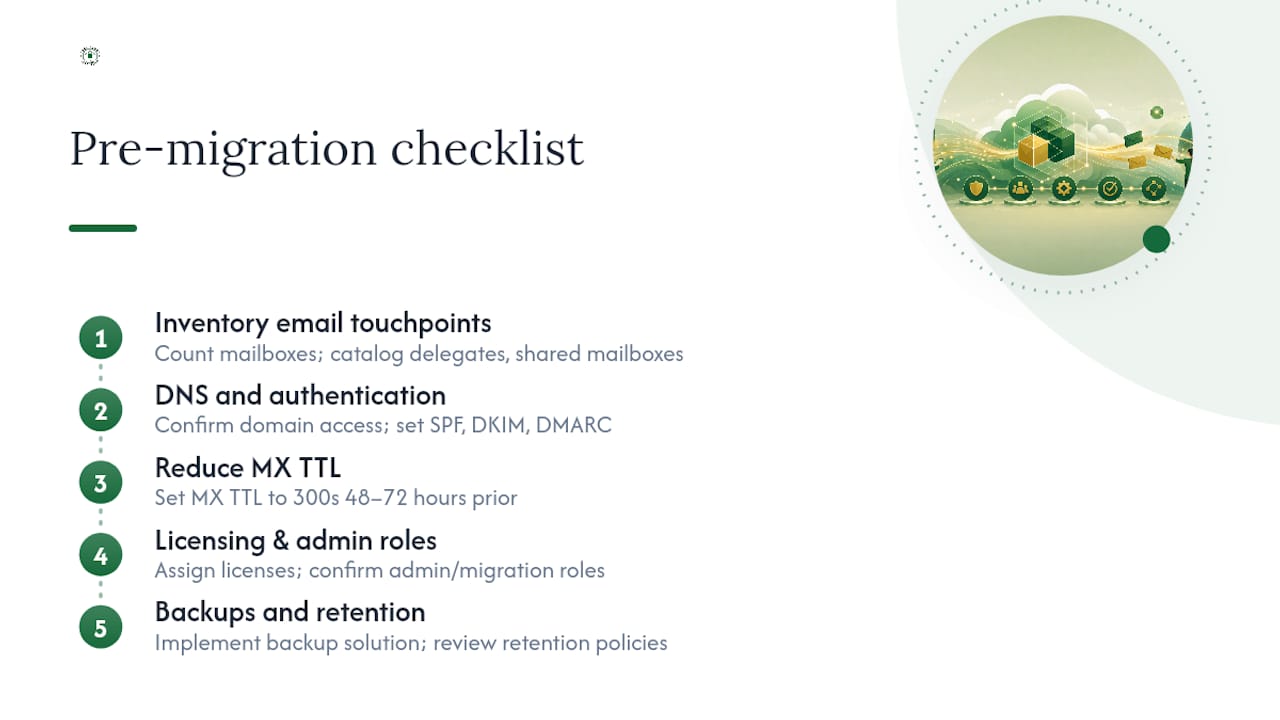
1. Inventory everything that touches email. Count mailboxes and their sizes, then catalog every delegate, shared mailbox, distribution list, and public folder. Don't stop at user accounts. Multifunction printers, CRM alert systems, and billing software often relay outbound mail through your Exchange server via SMTP, and those integrations silently break if nobody reconfigures them on cutover day. Updated requirements for SMTP relay through Exchange Online mean this step matters more than it used to, since Microsoft has tightened how relay authentication works.
2. Confirm DNS ownership and prep your authentication records. You need administrative access to your domain's DNS zone well before migration day. Configure SPF, DKIM, and DMARC records for Microsoft 365 before you touch your MX record, not after. Getting this sequence backward is one of the most common, and most avoidable, mistakes in the entire process. Misconfigured authentication records can cause delivery problems that last up to two weeks after cutover, which turns a weekend project into a two-week trickle of missing emails and confused clients.
3. Lower your MX TTL 48 to 72 hours before cutover. Drop the time-to-live value on your MX record down to 300 seconds well ahead of the actual flip. A shorter TTL means DNS servers around the internet refresh their cached records faster once you make the real change, which shrinks the window where some senders are still routing mail to your old server.
4. Verify Microsoft 365 licensing and admin permissions. Every mailbox that's migrating needs an assigned license waiting for it, and whoever runs the migration needs global admin or the specific migration-related roles in the target tenant. Confirm domain ownership inside the Microsoft 365 admin center before you schedule anything.
5. Decide on backup and retention before you decommission anything. Microsoft 365's uptime guarantees are not a backup strategy. The platform's availability commitments protect uptime, not point-in-time recovery, and default retention windows aren't built for full recovery from ransomware, accidental deletion, or a compliance audit going back further than a few months. Set up a proper backup solution before you decommission the source environment, and review how retention policies work inside Microsoft 365 so you know exactly what the platform does and doesn't cover.
6. Select a pilot group and test before you commit. Pick five to ten mailboxes representing different departments and usage patterns, then run Autodiscover checks, synthetic mail probes, and calendar free/busy tests against them before touching production mail flow.
Pro Tip: Run your synthetic mail probes from at least two external networks, not just from inside your own office. A test that passes on your corporate Wi-Fi can still fail for a client on a residential ISP if DNS propagation hasn't finished everywhere yet.
How to Execute a Microsoft 365 Email Migration Step by Step
Planning gets you ready. Execution is where the actual risk lives, because every step from here happens in front of users who expect their inbox to keep working. Here's the sequence that keeps downtime to a minimum.
-
Configure migration endpoints. Set up your migration endpoint in the Microsoft 365 admin center, pointing to your source Exchange server or using an approved third-party migration tool if you're moving from IMAP or a non-Exchange platform. Test the connection before you schedule any batches.
-
Run the initial full sync. Start the bulk data copy for your pilot group first, then expand to the full mailbox list once the pilot passes. This initial sync can take hours or days depending on mailbox size and your available bandwidth. Don't rush this stage. It's the foundation everything else builds on.
-
Verify pilot mailboxes end to end. Check that mail flows both directions, calendar invites sync correctly, and shared mailbox permissions carried over. If the pilot group hits problems, fix them now while the blast radius is five people, not five hundred.
-
Run continuous incremental syncs. Once the bulk of the data has moved, Microsoft 365 (or your migration tool) keeps syncing new and changed items on a rolling basis. Track the delta volume each day. A shrinking delta means you're closing in on cutover readiness; a delta that keeps growing means something upstream is generating more mail than the sync can absorb.
-
Lower MX TTL to 300 seconds, if you haven't already. This should already be in place from the pre-migration checklist, but confirm it 48 to 72 hours before your scheduled cutover window. Field guidance consistently points to this window as the sweet spot between giving DNS enough time to propagate and not leaving a short TTL exposed for too long, since lowering MX TTL ahead of cutover measurably shrinks the mail-routing tail that causes perceived downtime.
-
Run the final delta sync immediately before the MX flip. Schedule this for a low-traffic window, typically a weekend evening. This last sync captures every message that arrived since your previous incremental pass, so nothing gets stranded on the old server.
-
Update MX, SPF, DKIM, and Autodiscover together. Change these DNS records as a single coordinated action, not as scattered changes over several hours. Inconsistent records during the transition window are what generate the intermittent delivery failures that make migrations look chaotic even when the underlying data move went fine.
-
Run your verification suite immediately after the flip. Send and receive test mail from multiple external domains. Confirm free/busy lookups work for calendar-heavy teams. Check that shared mailbox access and delegate permissions transferred correctly. Run synthetic probes from outside your network to confirm external senders are routing correctly. Your pass criteria should include successful two-way mail flow, correct calendar visibility, and zero bounce messages from your test domains over a two-hour observation window.
-
Set clear rollback triggers before you need them. Decide in advance what failure looks like: mail bounce rates above a defined threshold, more than a handful of VIP mailboxes failing verification, or authentication records not resolving correctly after four hours. If you hit a trigger, you revert MX back to the source environment. This is only possible if you kept the old system live and untouched.
Keep the source environment live until you get explicit sign-off, not just until the migration tool reports success. A tested rollback plan that preserves the source environment is the single biggest trust signal in the entire process, because it means a bad Saturday night doesn't turn into a bad Monday morning for your whole organization.
Fixing Post-Cutover Problems Before They Flood Your Helpdesk
The data can migrate perfectly and users can still experience the whole thing as a failure. That's because migration has two halves: the technical move and the user-facing handoff, and the second half is where most support tickets actually originate. Get ahead of it and Monday morning stays calm instead of chaotic.
- Outlook profiles almost always need attention. Some users' profiles reconnect automatically through Autodiscover once DNS propagates; others need a manual profile re-creation. Write step-by-step instructions before cutover day, not during the first wave of confused tickets.
- Mobile devices need explicit re-add guidance. Phones and tablets configured against the old Exchange server won't auto-update. Send a short, plain-language email with screenshots the day before cutover so people can re-add their accounts on their own schedule.
- SMTP relays and multifunction printers need reconfiguration, not just a hope that they'll figure it out. Scan-to-email, billing software, and CRM alert systems that relayed through your old Exchange server will silently stop working unless someone updates their outbound mail settings to point at Microsoft 365.
- Send-as and delegate permissions deserve a spot check. Executive assistants managing a boss's inbox, or shared department mailboxes with multiple owners, are exactly the accounts where a missed permission turns into an angry phone call.
- Watch delivery monitoring closely for SPF and DKIM flags in the first week. Intermittent spam-folder placement or bounce messages almost always trace back to an authentication record that didn't fully propagate or wasn't configured correctly before the flip.
Pro Tip: Staff hypercare coverage for 48 to 72 hours after cutover, with at least one named engineer on call outside normal business hours. Most migration-related tickets surface in the first two business days, and having a specific person to escalate to (rather than a general help queue) cuts resolution time dramatically.
How Long Does a Microsoft 365 Email Migration Take?
Timelines vary more with complexity than with raw mailbox count, but rough benchmarks help with planning.
- Small cutover migrations (150 or fewer mailboxes) typically run one to two weeks from kickoff to hypercare wrap-up, with the actual cutover window compressed into a single weekend.
- Staged migrations for mid-size organizations usually stretch across two to six weeks, since mailboxes move in scheduled batches rather than all at once.
- Hybrid migrations with extended coexistence can run for months by design, especially when different departments or acquired entities need to migrate on separate schedules.
- Cross-tenant consolidations tend to take four to eight weeks minimum, driven by the setup time for migration endpoints, consent grants, and cross-tenant permission mapping.
Factors that stretch any timeline: unusually large mailboxes (multi-gigabyte archives take real time to copy), a long list of third-party integrations that each need testing, compliance audits that require documentation at every step, and any tenant consolidation work layered on top of the mail move itself. A longer coexistence period costs you calendar time, but it's worth it whenever different teams truly can't migrate on the same weekend, or when a phased rollout lets you catch problems in a small batch before they hit everyone.
When a Managed Migration Makes More Sense Than DIY
A do-it-yourself cutover works fine when someone on staff has done this before and your environment is genuinely simple. It stops working the moment you're dealing with compliance requirements, a business where email downtime means missed client deadlines, or an IT team that's never touched a Microsoft 365 tenant before. That's the point where hiring a managed provider stops being a luxury and starts being risk management.
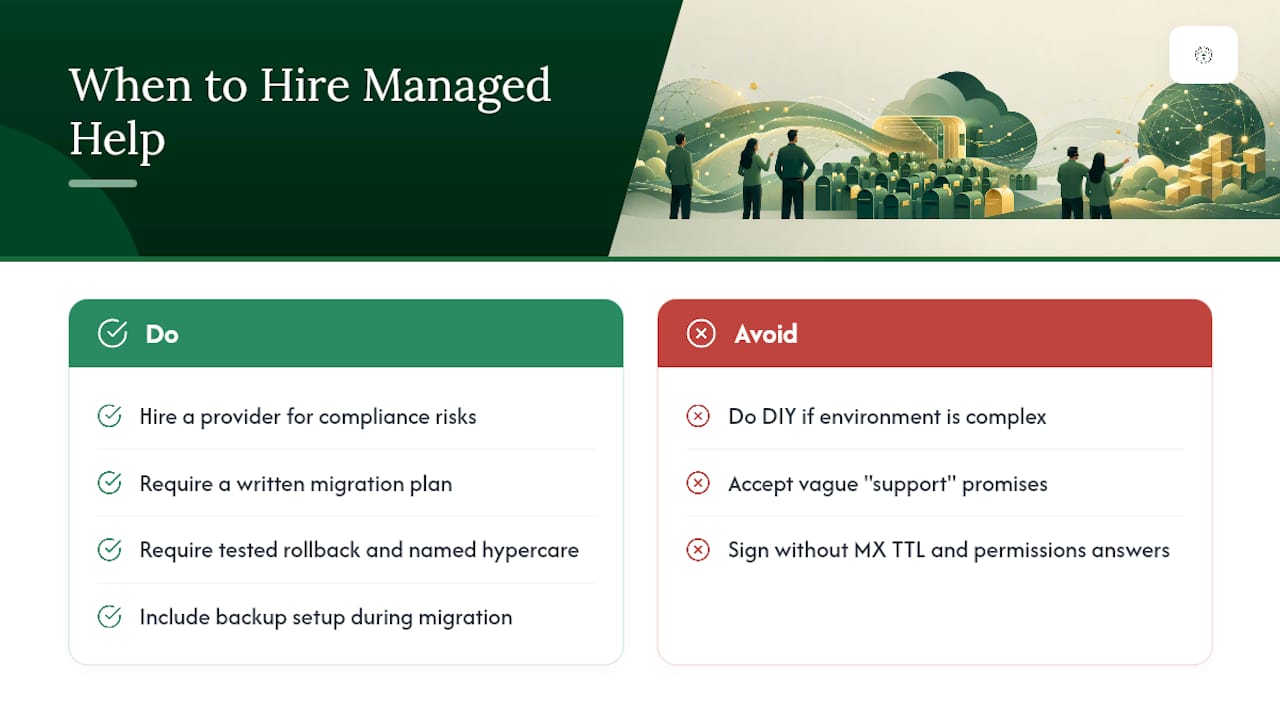
A properly scoped engagement should include a written migration plan, a specific DNS and authentication strategy, a documented approach for exporting and re-importing permissions, a tested rollback plan, and named hypercare coverage, not a vague promise of "support." Backup setup should be part of the conversation too, since migration is the natural moment to fix a backup gap that's existed for years.
Before signing anything, ask a prospective vendor three direct questions: What's your exact MX TTL procedure and timing? How do you migrate shared mailbox and delegate permissions, specifically? And who, by name, is on call during hypercare? Vague answers to any of those three questions are a warning sign worth taking seriously.
— Nicholas
Get Microsoft 365 Migration Support in Norman, Moore & OKC
If your team is weighing a DIY cutover against bringing in outside help, the honest tradeoff is time and risk tolerance, not cost alone. Greatplainsnetworking runs Microsoft 365 migrations for small businesses with services designed to support timely response and flexible engagement terms.
A managed migration through Greatplainsnetworking includes the pre-migration inventory, DNS and authentication planning, a tested rollback plan, and hypercare coverage with a named engineer, the same checklist items covered above, handled by a team experienced in managing migrations for various professional sectors. That clear and accessible communication approach matters most on cutover weekend, when a confusing support ticket queue is the last thing your office manager wants to deal with. Explore Microsoft 365 support built specifically for small business environments, or start with a broader look at managed IT support if you're also weighing 24/7 monitoring and cybersecurity alongside the migration itself. Reach out for a consultation and get a specific plan for your mailbox count, your integrations, and your timeline before you schedule anything.
Sources
For deeper technical reference, Microsoft Learn's mailbox migration overview defines every migration type and links to the official mail migration advisor. Review cross-tenant migration prerequisites if you're consolidating tenants, and check current SMTP relay requirements before you reconfigure printers and business applications. For calendar migration specifics affecting mobile and desktop clients, this guide to syncing Google Calendar with Outlook covers scenarios worth testing during your pilot phase.
- What to know about a cutover migration
- How do you migrate email authentication records to a new domain?
- Microsoft 365 backup considerations
Recommended
Want help putting this into practice?
We'll audit your security, speed, and hardware in under an hour — no commitment, no sales pitch. Just a clear roadmap of what to fix and why.